
You can find your schedule on the start page if you have logged in.
You will get the best experience if you log in
When you log into the student website, you will automatically see your schedule on the start page as well as links to your welcome letter, course syllabus and literature list. In other parts of the student website, you will find more information aimed at you and your course or programme specifically.
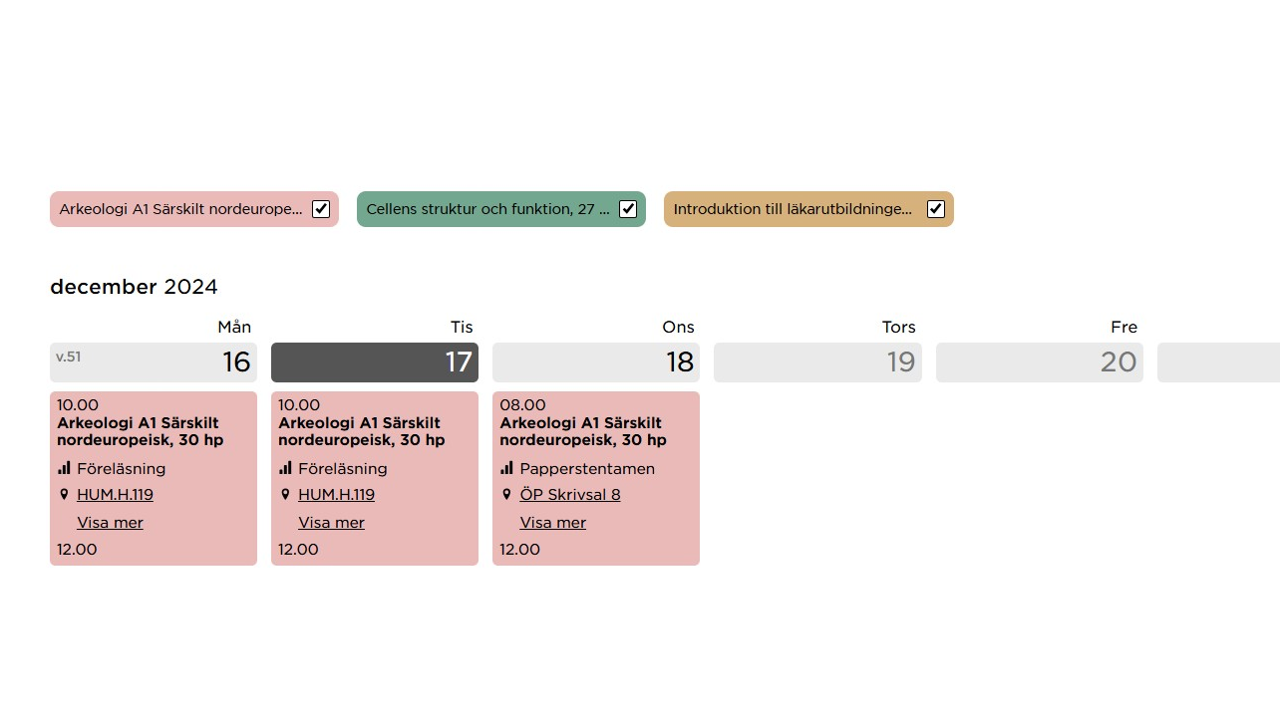
Schedule
A schedule is displayed on the student website home page when you log in. In most cases, you will be able to see times for different teaching elements during your course or courses entered in that schedule, but in some cases you will access the course schedule in a different format via a link above the schedule displayed on the student website.
Subscribe to the schedule
If the course coordinator has chosen to use TimeEdit to create the schedule, you can subscribe to it and have it automatically displayed on your mobile phone or calendar. Here is how:
- Click on the “Subscribe to the schedule” link below the schedule on the student website. You will then be redirected to the same pre-selected schedule in TimeEdit.
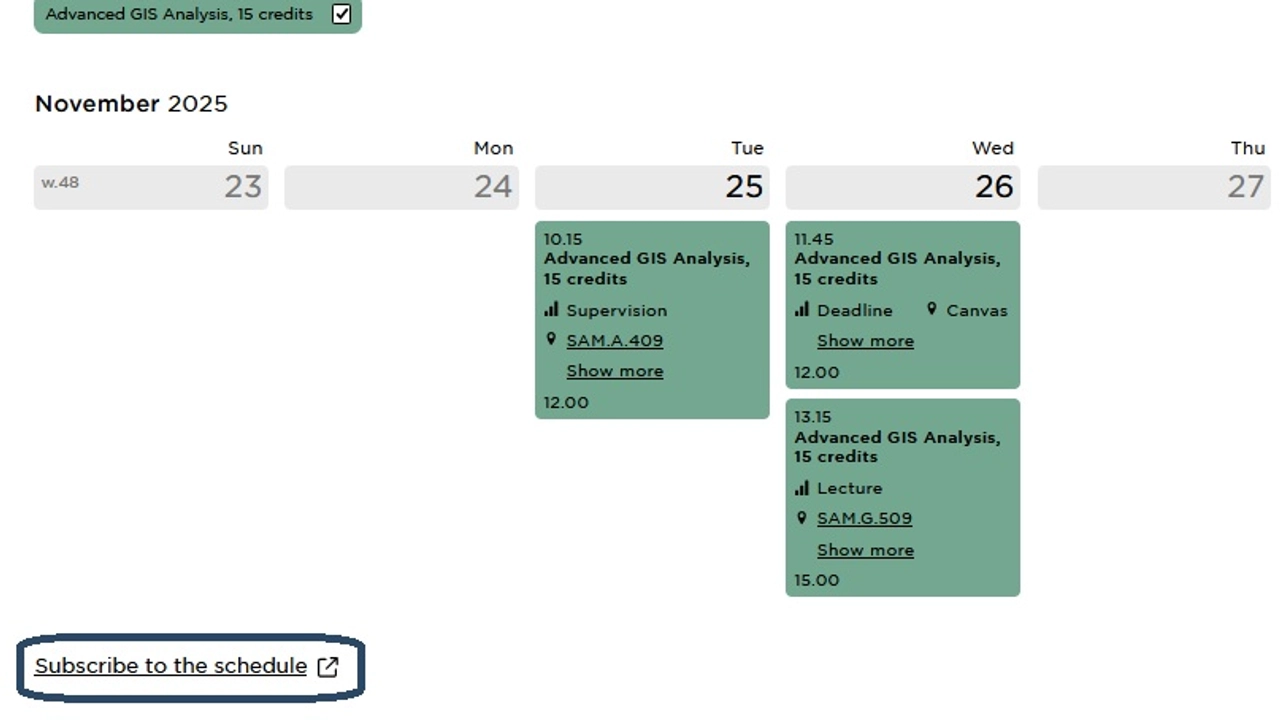
Below your schedule, you will find a link to subscribe to it.
- In TimeEdit, select “Subscribe” and follow the instructions displayed. The steps may vary depending on which calendar you use, for example, Google Calendar, Outlook, or Apple's iOS Calendar.
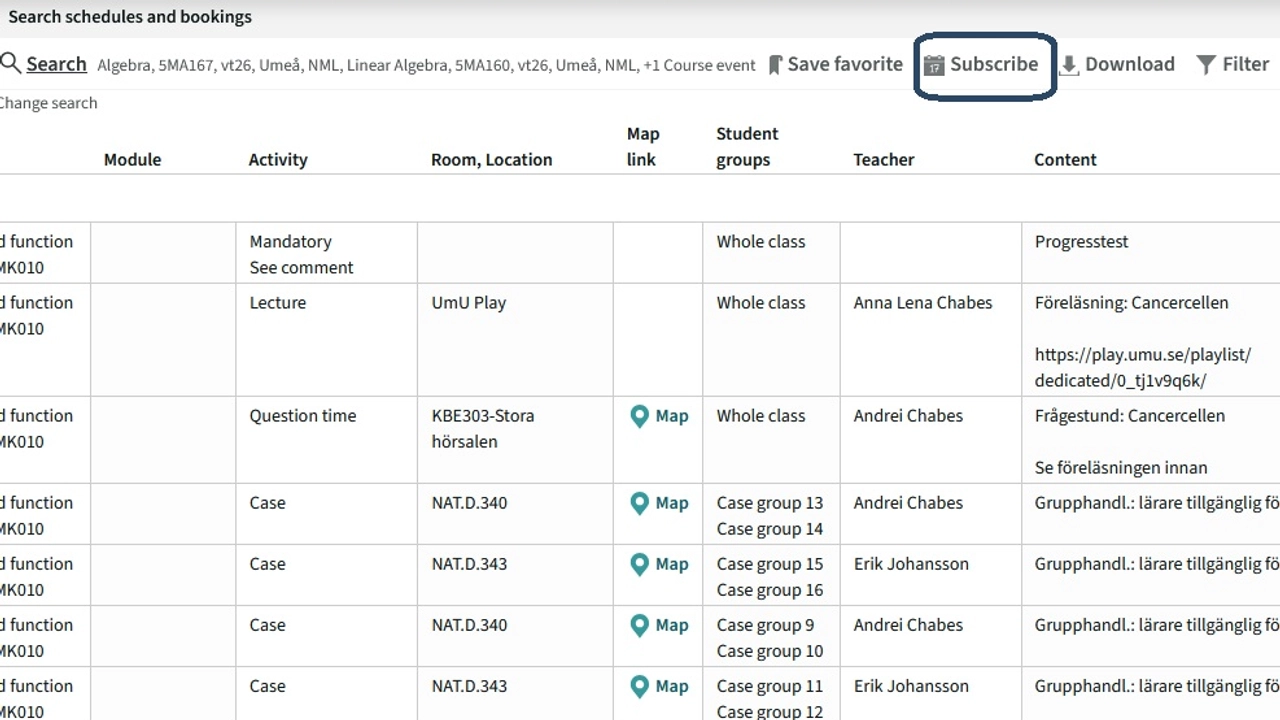
In TimeEdit, click on the highlighted link to start subscribing to your schedule.
Read more in the Manual about how to subscribe to the schedule.
Active courses
If you have logged into the student web, the start page lists your active courses. Your active courses are those you are registered on for the current semester, and those you have been admitted to but have not yet registered for. The coloured text next to the course name indicates if you have only been admitted or if you have also registered for the course. Remember that you must register after you have been admitted if you wish to keep your place on the course.
Next to each course in this list, there are links to Course syllabus and literature and Welcome information, if these contents are available for the course in question.
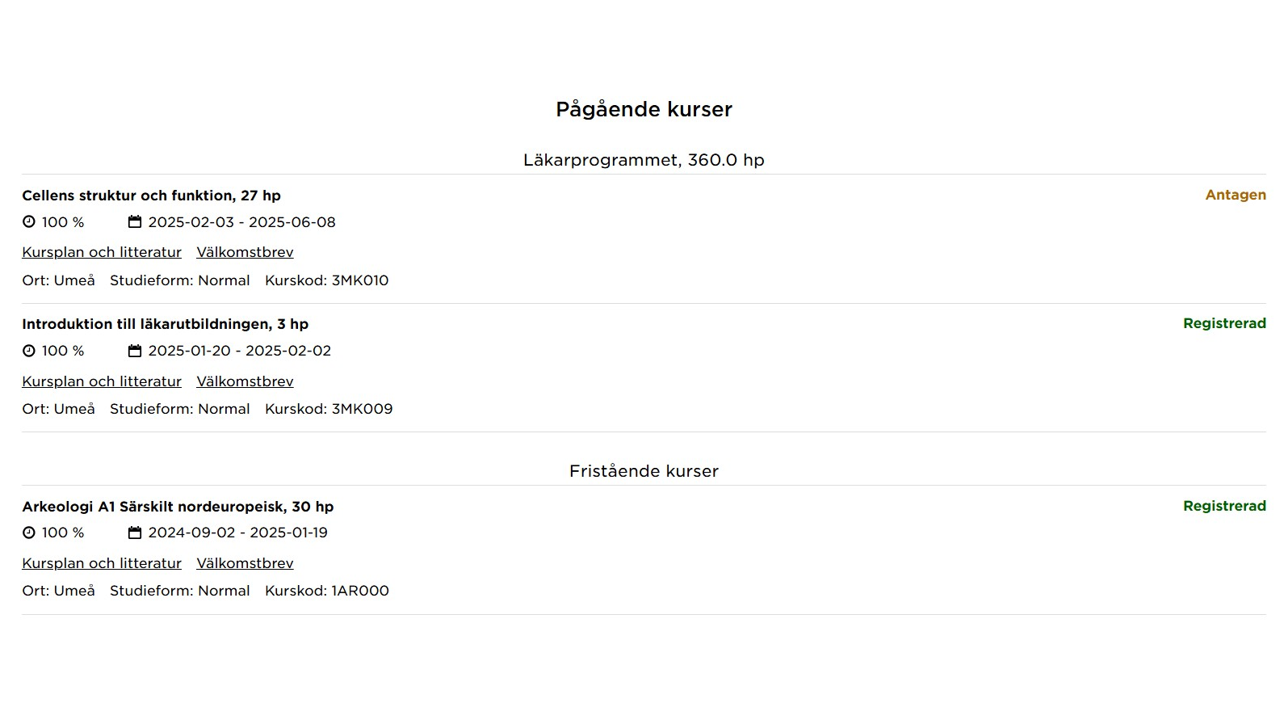
Course list showing a student’s ongoing courses and their statuses.
Information adapted to you and your courses
On the rest of the student website, you will find information applicable to all students. Many of these pages also contain additional information applicable to you and your course or programme.
This information is labelled with the name of your current course or programme. When you have logged into the student website, this content is shown to you automatically.
These are some examples of what you can see:
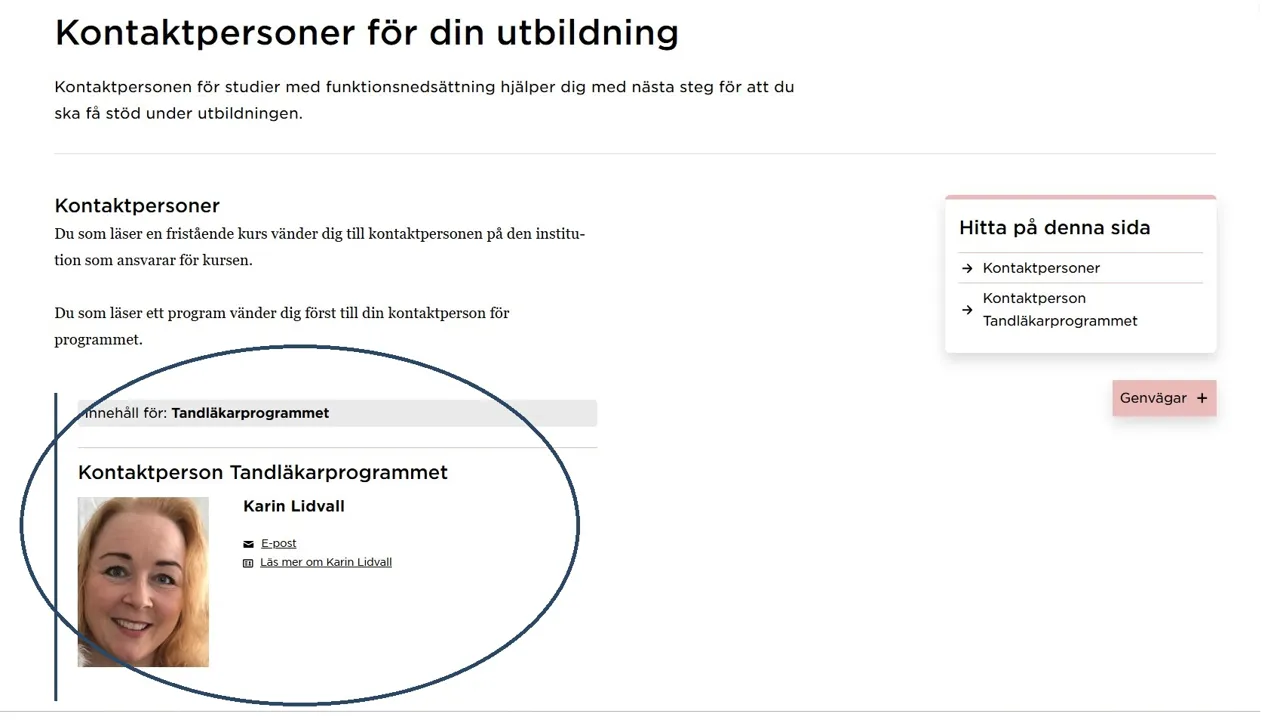
The content within the blue marking applies to one specific course or programme, in this case the Dentistry Programme.
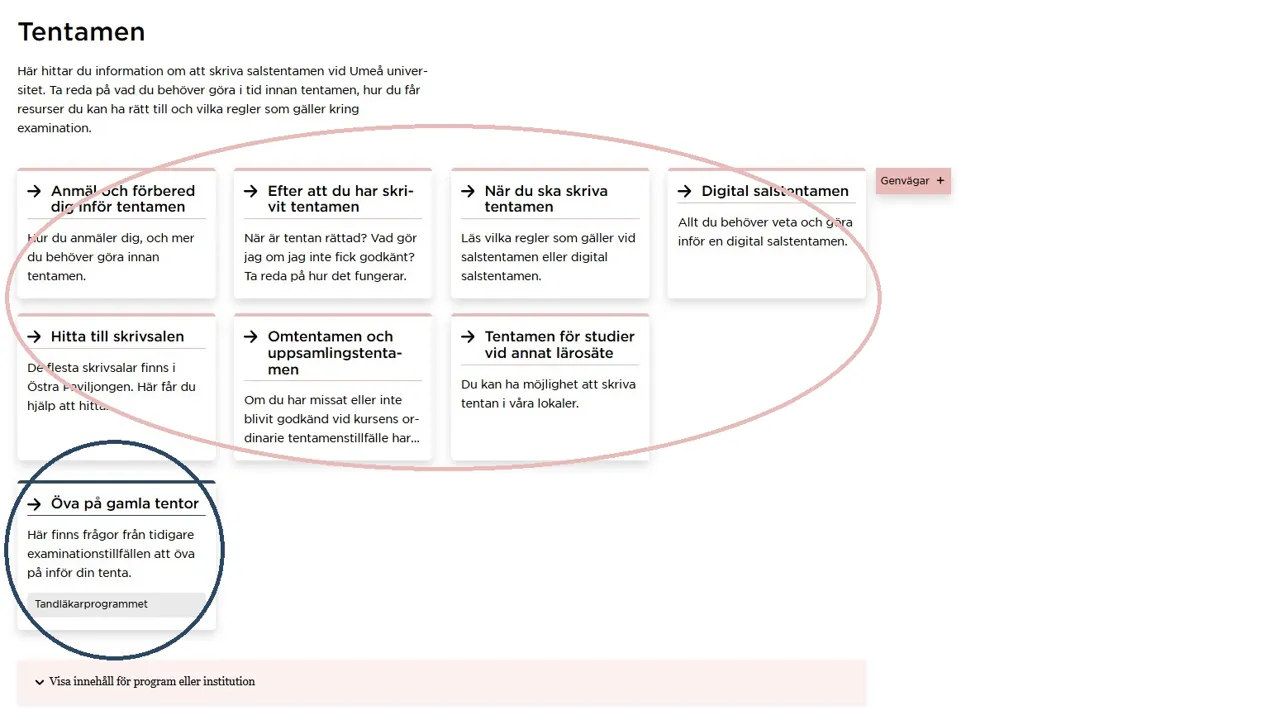
The content within the pink marking applies to all students, whereas the content in the blue marking applies to a specific programme indicated by the label.
View content without logging in
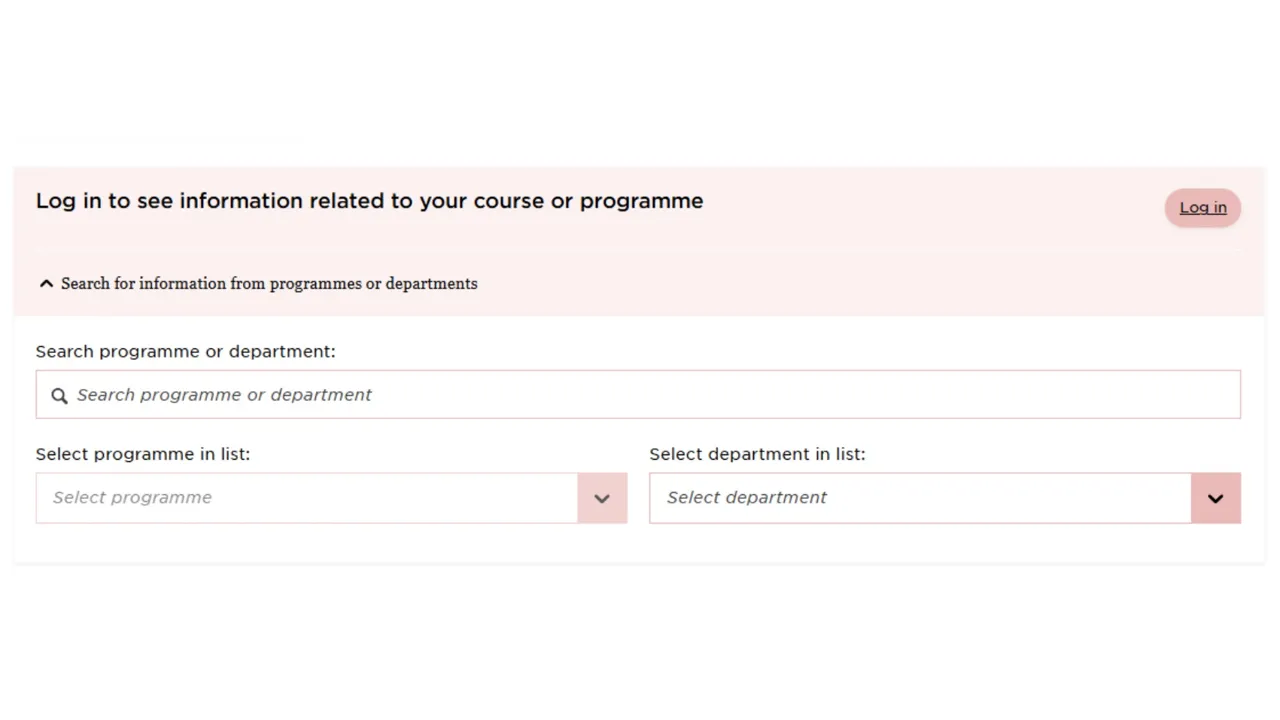
If you cannot or do not want to log in, the content aimed at you will not be shown automatically. Instead, you can find the information using the pink search filter at the bottom of the page. If you cannot find your department or programme in the drop-down menus, this means that there is no specific information for your course or programme regarding the content of the page you are viewing.
Shortcuts
The pink "Shortcuts" headline is visible on all pages on the student web. It contains links to the services you use most frequently. You can expand or collapse that menu as needed.
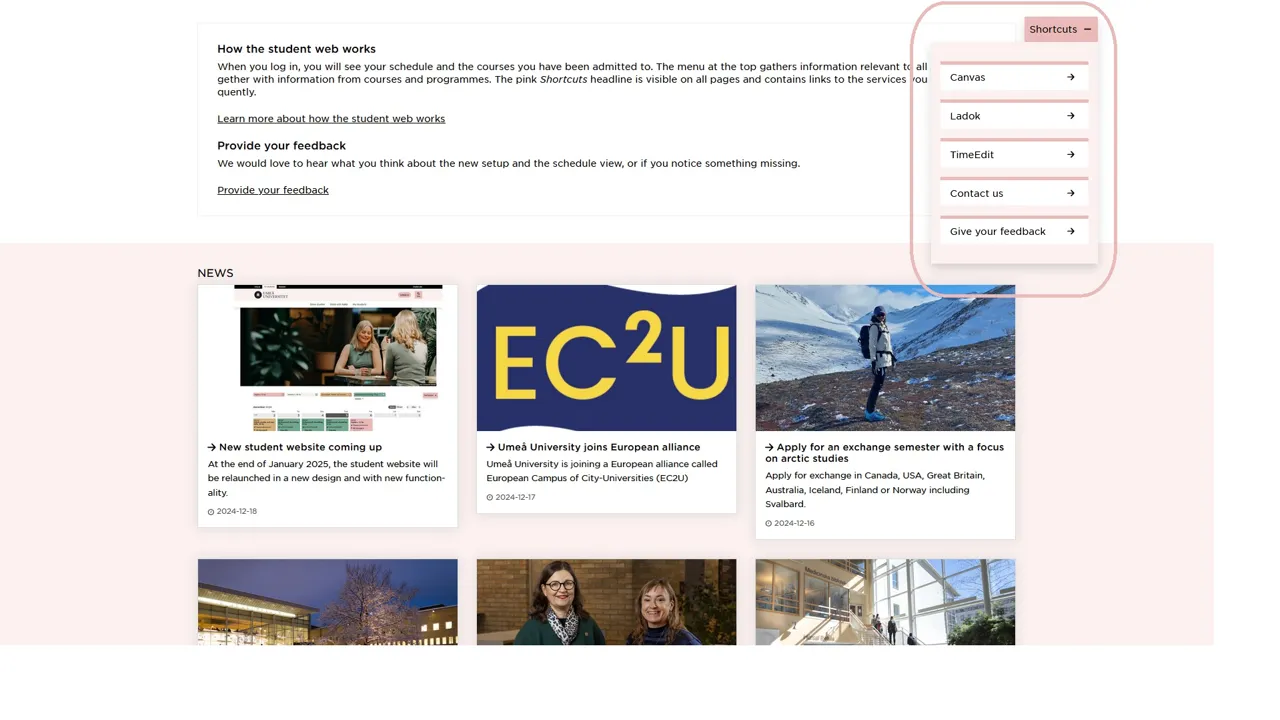
The "Shortcuts" function is here highlighted within the pink rectangle. "Shortcuts" contains links to the most frequently used services, and appears on all student web pages.
Canvas and Ladok – two services you need as a student
In addition to the student website, you will also use two other systems during your studies: Canvas learning platform, and Ladok student registry. Direct links to these can be found on all student web pages, under the "Shortcuts" headline.
Canvas is the University’s virtual learning environment, or learning platform. In Canvas, you will get course assignments and course information from your teachers. You can also communicate with your fellow students through Canvas.
In the Ladok student registry, some steps of your studies are administered. For instance, when you have been admitted to a course, you need to register for the course to keep your place, and once you have started, you need to sign up for exams before you can take them.

Canvas
The Canvas learning platform contains study tasks and course information.

Ladok – for students
Ladok is a system where you administer certain parts of your education.
Give us your feedback
We would love to hear your thoughts on the appearance and functionality of the student web, or if you find errors. Please remember that if you are a student, you get the best experience by logging in.
Please give us your feedback and suggestions through this form (switch to English)